When your Chromebook, usually a bastion of reliability, starts playing up with audio, video, or camera glitches, it can quickly turn from a productive tool into a frustrating paperweight. Whether it's a silent video call, a grainy webcam feed, or a completely black screen where your camera should be, Troubleshooting Chromebook Audio, Video & Camera Malfunctions often feels like a mystery. But don't fret; most of these issues aren't complex hardware failures. They're typically minor software hiccups, permission snags, or simple settings oversights that you can fix with a bit of methodical detective work.
This guide will walk you through a clear, step-by-step process, equipping you with the knowledge to diagnose and resolve the most common audio, video, and camera problems on your Chromebook. We'll demystify the technical jargon and provide actionable solutions, ensuring you can get back to crystal-clear calls and uninterrupted viewing experiences.
At a Glance: Quick Fixes for Common Chromebook Issues
Before diving deep, here’s a rapid rundown of the most common solutions you’ll encounter:
- Restart: The universal fix for temporary software glitches.
- Unplug Peripherals: Disconnect all external devices (headphones, mics, webcams).
- Check ChromeOS Updates: Ensure your system is running the latest, bug-free version.
- Hard Reset: A deeper reset that clears memory without deleting your data.
- Verify Permissions: Ensure apps have access to your camera and microphone.
- Test Audio/Video Settings: Confirm correct input/output devices and volume levels.
- Powerwash (Last Resort): A factory reset for persistent software issues.
The Chromebook's Resilience (and Why It Glitches Anyway)
Chromebooks are renowned for their simplicity, security, and robustness. Their cloud-centric design means fewer local files, fewer complex installations, and less bloat, which generally leads to stable performance. However, like any sophisticated piece of technology, they aren't entirely immune to hiccups.
Most audio, video, and camera malfunctions stem from common culprits:
- Software Glitches: A temporary snag in ChromeOS or a specific app, often resolved by a simple restart.
- Permission Errors: Apps might lose or incorrectly request access to your camera or microphone.
- System Updates: Occasionally, a new ChromeOS update can introduce a bug, or an update might get corrupted during installation.
- Hardware Conflicts: External devices (USB webcams, headphones) can sometimes interfere with built-in components.
- Resource Overload: Too many tabs, apps, or extensions can bog down your system, impacting performance for media-rich tasks.
- App-Specific Bugs: A particular Android or Chrome app might be poorly optimized or have its own internal issues.
Understanding these underlying causes helps tailor your troubleshooting approach. Think of it as peeling back layers of an onion – you start with the simplest, most common fixes and progressively move to more involved solutions.
Your First Line of Defense: General Troubleshooting for Any Malfunction
Before you panic, these foundational steps often resolve a surprising number of issues, regardless of whether you're facing a black camera screen or a silent speaker.
1. Unplug and Simplify
Sometimes, the culprit isn't the Chromebook itself, but an attached peripheral. External webcams, USB microphones, headphones, or even a docking station can sometimes create conflicts or simply be the wrong device being used by default.
Action: Disconnect all external devices – USB drives, headphones, external monitors, mice, keyboards, webcams, and microphones. Once everything is unplugged, restart your Chromebook and test the internal audio, video, and camera components. If they work, plug your peripherals back in one by one to identify the problematic device.
2. The Power of a Restart
This might sound like a cliché, but a simple restart is incredibly effective. It flushes out temporary software bugs, clears cached memory, and reinitializes all your system's processes. Many permission errors or service crashes (like a camera service that simply stopped responding) can be fixed with a fresh boot.
Action:
- Click the time/status area in the bottom-right corner of your screen.
- Select the power icon.
- Click "Restart".
- Once it boots back up, test your audio, video, and camera.
3. Stay Current: ChromeOS Updates
Google is constantly refining ChromeOS, pushing out updates that not only add new features but, crucially, fix bugs. A known camera bug, for instance, was addressed in ChromeOS version 87.0.4280.142, particularly affecting some ASUS Chromebook models. Running an outdated version could mean you're still grappling with a problem that's already been resolved.
Action:
- Click the time/status area in the bottom-right corner.
- Select the gear icon (Settings).
- In the Settings menu, click the Action button (three horizontal lines, usually top-left) to open the sidebar.
- Scroll to the very bottom and select "About Chrome OS."
- Click "Check for Updates."
- If an update is available, install it, and restart your Chromebook when prompted. Then, retest your audio, video, and camera.
4. The "Hard Reset" Lifeline (System Refresh)
A hard reset is more robust than a simple restart but less drastic than a full Powerwash (which wipes your data). It's a hardware-level reset that re-establishes the connection between your Chromebook's software and its physical components. This clears corrupted memory and can fix issues where the system isn't communicating correctly with hardware like the camera or speakers. Importantly, it does not delete any local files or personal settings.
Action:
- While your Chromebook is on, press and hold the Power button and the Refresh button (the circular arrow key, usually above the '3' key on the keyboard) simultaneously.
- Hold them down until the Chromebook turns off and then starts to restart.
- Release the buttons once the screen goes black or you see the ChromeOS logo.
- After it boots up, test your audio, video, and camera.
Zeroing In: Specific Malfunctions & Their Fixes
If the general troubleshooting steps haven't solved your problem, it's time to get specific. We'll start with the most common issues related to our core topic: audio, video, and camera problems.
Silence & Shadows: Audio, Video, and Camera Deep Dive
These are the core issues we're here to fix. A systematic approach is key.
Camera Malfunctions (Black Screen, "Camera Unavailable")
This is one of the most common and frustrating problems. The good news is, it's often a software fix.
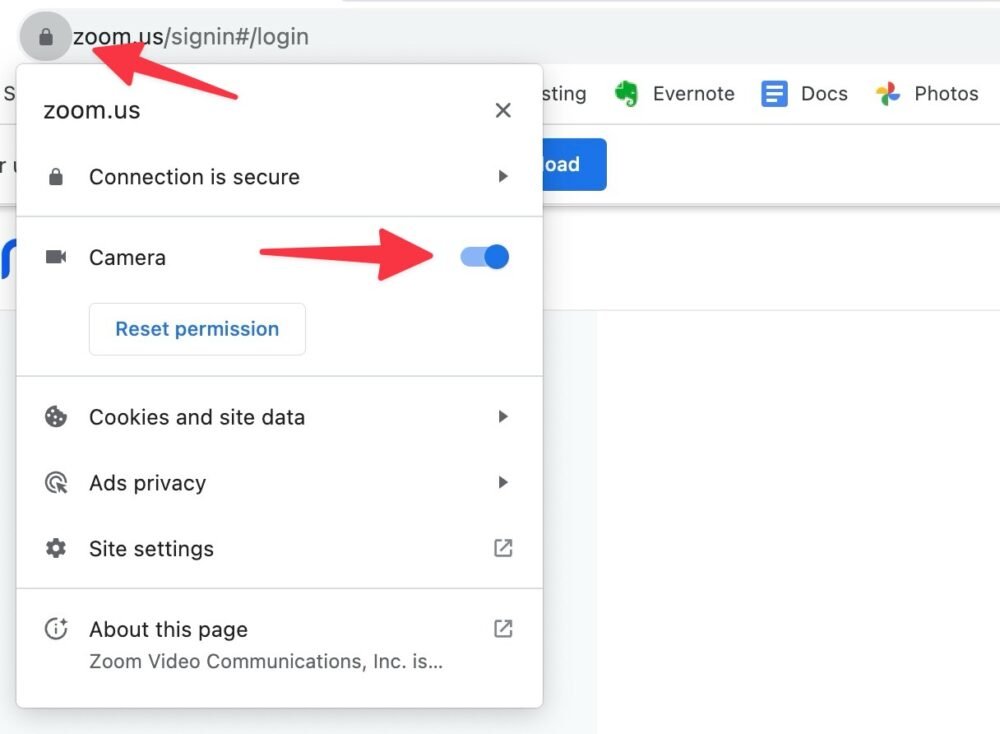
- Check App Permissions: Many camera issues stem from apps simply not having permission to access the camera.
- Open Settings (gear icon).
- Go to Privacy and security > Site settings (or directly search for "Camera" in Settings).
- Ensure "Camera" is set to "Ask before accessing" or "Allow" for the sites/apps you want to use. You can also check "Privacy and security" > "Permissions" > "Camera" to see which Android apps have access.
- If using an Android app, navigate to Settings > Apps > Manage apps, find the specific app (e.g., Zoom, Google Meet), and check its Permissions to ensure camera access is granted.
- Test with a Different App/Website: Is the problem specific to one application (e.g., Google Meet) or does it affect all camera usage (e.g., the built-in Camera app)?
- Open the default Camera app (search for "Camera" in the app launcher). If it works there, the issue is likely with the specific app you were using.
- Try a different video conferencing website (e.g., use Google Meet in a browser if you were having issues with the Android Meet app).
- Verify Camera Service: Sometimes the camera service itself crashes.
- A restart (as detailed above) is often enough to revive it.
- A hard reset can also re-establish the connection to the camera hardware.
- Problems Waking from Sleep: If your camera only acts up after the Chromebook has been in sleep mode for a while, it might be a driver or service issue not waking up correctly.
- Again, a restart is the first step.
- Ensure ChromeOS is up-to-date, as these kinds of minor bugs are often patched.
No Sound / Distorted Audio
When your Chromebook goes silent or plays garbled audio, it's usually a settings issue or an external device conflict.
- Check Output Destination and Volume Levels: This is the most common oversight.
- Click the time/status area (bottom-right).
- Look for the volume slider. Make sure it's not muted and is turned up.
- Click the right-arrow next to the volume slider. This opens the audio output options.
- Ensure the correct device is selected (e.g., "Internal speakers" if you're not using headphones, or your specific headphone model if you are). Sometimes, if you've previously plugged in headphones, the Chromebook might default to an "external" option even if nothing is connected.
- Restart with Headphones/Speakers Unplugged: Similar to camera issues, external audio devices can sometimes confuse the system.
- Unplug all headphones, external speakers, or USB audio devices.
- Restart your Chromebook.
- Test the internal speakers. If they work, reconnect external devices one by one.
- Test External Speakers/Headphones: If your internal speakers aren't working, try plugging in a pair of headphones or external speakers.
- If audio works through them, your internal speakers might have a hardware issue. If it doesn't, the problem is likely with the audio output settings or the ChromeOS audio subsystem.
- Disable Hardware Acceleration (For Display/Video Playback Related Audio): While primarily for video, sometimes hardware acceleration can impact audio sync or playback quality.
- Go to Settings > Search for "hardware acceleration."
- Toggle off "Use hardware acceleration when available" (you may need to restart Chrome).
Display Glitches / Flickering Video
While not strictly audio or camera, video display issues often go hand-in-hand with multimedia problems.
- Test with an External Display: If your Chromebook's screen is flickering, glitching, or showing artifacts, connect it to an external monitor or TV using an HDMI or USB-C adapter.
- If the external display shows a perfect image, the problem is likely with your Chromebook's internal screen or its connection.
- If the external display also shows problems, the issue might be with the graphics processor or drivers, pointing back to software (updates, hard reset) or potentially a more serious hardware issue.
- Disable Hardware Acceleration: As mentioned for audio, hardware acceleration can sometimes cause visual glitches or poor video playback if there's a driver conflict or a specific website/app isn't optimized for it.
- Go to Settings > Search for "hardware acceleration."
- Toggle off "Use hardware acceleration when available." Restart Chrome when prompted.
The Lag Monster & Frozen Screens
A sluggish or frozen Chromebook can indirectly impact audio and video performance, leading to choppy calls or unresponsive camera feeds.
- Close Unused Tabs and Apps: ChromeOS can manage many tabs, but each consumes memory and CPU. Video calls and media playback are resource-intensive.
- Close any browser tabs you're not actively using.
- Close Android apps running in the background.
- Remove or Disable Unused Chrome Extensions: Extensions can be resource hogs, especially poorly coded ones.
- Type
chrome://extensionsinto your browser's address bar. - Disable or remove any extensions you don't frequently use, or those that seem suspicious. Test if performance improves.
- Open Task Manager (Search+Esc) to Identify Problem Apps: Your Chromebook has a built-in task manager to see what's consuming resources.
- Press Search + Esc (the Search key is usually where Caps Lock would be).
- This shows a list of running processes. Sort by CPU or Memory to identify resource-intensive tabs or apps. You can select and "End process" for non-essential items.
- Clear the Cache and Cookies in Chrome: Corrupted browser data can lead to slow loading times and sometimes even display issues.
- Open Chrome, click the three-dot menu (top-right).
- Go to More tools > Clear browsing data.
- Select a Time range (e.g., "Last hour," "All time").
- Check "Cached images and files" and "Cookies and other site data."
- Click "Clear data."
- Cool It Down: Overheating: An overheated Chromebook will throttle performance, causing lag and potential component damage.
- Check if the Chromebook's fans are running (if it has them) and ensure vents are clear. Avoid using it on soft surfaces like blankets that can block airflow. If your Chromebook feels unusually hot, let it cool down.
Connecting the Dots: Wi-Fi Woes
While not directly audio/video/camera, a poor internet connection is often the hidden cause of choppy video calls and buffering streams.
- Restart Your Router and Chromebook: A classic IT troubleshooting step for a reason. Both devices can benefit from a fresh start.
- Unplug your Wi-Fi router for 30 seconds, then plug it back in.
- Restart your Chromebook.
- Forget and Reconnect to the Network: This forces your Chromebook to re-establish a fresh connection with your Wi-Fi network, often resolving minor connection glitches.
- Go to Settings > Network > Wi-Fi.
- Click on your problematic Wi-Fi network.
- Choose "Forget."
- Then, reconnect to the network, entering your password again if prompted.
- Check for Captive Portals: On public networks (cafes, airports), you often need to sign in through a web page before gaining internet access. Your Chromebook might appear connected to Wi-Fi but have no internet.
- Open a browser; a sign-in page should automatically appear.
- Network vs. Chromebook Test: Determine if the problem is your Chromebook or your entire home network.
- If other devices (phone, tablet, laptop) also struggle with your home Wi-Fi, the issue is likely with your router or internet service.
- Try connecting your Chromebook to a mobile hotspot. If it works perfectly there, your home network is the likely culprit.
The Unresponsive Touch: Keyboard, Trackpad & Touchscreen Problems
These issues are less directly related to media, but a malfunctioning input device can still hinder app use and settings navigation.
- Try an External Mouse and Keyboard: If external peripherals work fine, the problem is isolated to your Chromebook's internal components. This helps narrow down if it's a driver issue or a physical hardware fault.
- Check Your Chromebook's Manual for Touchpad Disablement: Some Chromebooks have a function key combination to disable the touchpad. You might have accidentally triggered it. Consult your device's manual or look for a small icon on one of the F-keys (e.g., F9 or F10).
- Consider a Hard Reset or Booting in Guest Mode: A hard reset can sometimes revive unresponsive input devices. If the problem persists in Guest mode (which runs ChromeOS with no extensions or user data loaded), it strongly suggests a hardware failure.
Android App Anarchy
If your audio, video, or camera problems are exclusive to Android apps, the troubleshooting narrows down.
- Reinstall the Offending App: Just like on a phone, a fresh installation can fix corrupted app data or installation issues.
- Uninstall the app.
- Restart your Chromebook.
- Reinstall the app from the Google Play Store.
- Check That the App Has Necessary Permissions: This is paramount for video conferencing or camera apps.
- Go to Settings > Apps > Manage apps.
- Select the problematic Android app.
- Tap "Permissions" and ensure "Camera" and "Microphone" (and potentially "Storage" for saving files) are enabled.
- Clear App Data: This wipes the app's local settings and temporary files without uninstalling it.
- Go to Settings > Apps > Manage apps.
- Select the problematic app.
- Tap "Storage" > "Clear data" and "Clear cache." Be aware this will log you out of the app and reset its settings.
USB & Peripheral Puzzles
If you're using an external webcam, microphone, or speakers via USB, and they aren't working, here's what to check.
- Unplug and Replung the Device: A classic. Sometimes the USB connection just needs to be re-established.
- Try a Different USB Port: A specific USB port on your Chromebook might be faulty. Test the device in another port.
- Restart the Chromebook with the USB Device Plugged In: This can sometimes help the Chromebook correctly detect and initialize the device during boot-up.
- Check if the Device Works on Other Computers: If your external webcam or microphone doesn't work on another computer, then the device itself is likely faulty, not your Chromebook.
- Search Online for Known Compatibility Issues: Some niche USB devices might not have full driver support on ChromeOS. A quick search (e.g., "Logitech C920 Chromebook compatibility") can often reveal known issues or workarounds.
When Your Chromebook Won't Wake Up (or Turn On)
While not directly about media, a completely unresponsive Chromebook means no media usage at all.
- Press the Power Button Once: Ensure it wasn't just asleep.
- Check Charger Light and Power Source:
- Is the charger light illuminated? If not, try a different outlet or a known good USB-C power source (like a phone charger, though it might charge slowly).
- If the charger light is on but the Chromebook still won't turn on, try a hard reset.
- Perform a Hard Reset: As detailed above, this can often jumpstart a completely frozen or unresponsive system.
- Leave the Charger Connected for at Least 30 Minutes: If the battery was fully drained, it might need some time to accumulate enough charge to power on.
- Physical Damage Warning: If you notice signs of physical damage (liquid spill, a drop, a swollen battery case), do not try to charge or force it on. Immediately take it to a qualified technician. Attempting to charge a damaged battery can be dangerous.
This comprehensive approach should help you Resolve your Chromebooks glitches, whether they are minor annoyances or significant roadblocks to your productivity.
The Nuclear Option: Powerwashing Your Chromebook
If you've tried all the specific software troubleshooting steps and your Chromebook still exhibits persistent audio, video, or camera malfunctions, a Powerwash might be your last resort for software-related issues.
What is a Powerwash?
A Powerwash is a factory reset. It restores your Chromebook to its original, out-of-the-box state. This means all local data on your Chromebook will be erased, including downloaded files, photos in your Downloads folder, and saved Wi-Fi networks. It also removes any locally installed applications and resets all settings. It does not affect data stored in your Google Drive or other cloud services.
When to Powerwash:
- When all other software troubleshooting fails.
- If your Chromebook is consistently unstable, crashing, or suffering from widespread performance issues that aren't tied to a specific app.
- If you suspect deep-seated software corruption or malware.
Before You Powerwash: Essential Precautions - Back Up Local Files: Anything in your "Downloads" folder or any local user profile data will be deleted. Manually copy these to Google Drive, an external USB drive, or an SD card.
- Check Cloud Syncing: Ensure all your important browser data (bookmarks, passwords, extensions) is synced to your Google account. This happens automatically if you're signed in.
- Remove SD Cards/USB Drives: Physically remove any external storage devices to prevent accidental data loss.
How to Powerwash:
- Click the time/status area in the bottom-right corner.
- Select the gear icon (Settings).
- In the Settings menu, click the Action button (top-left) to open the sidebar.
- Scroll down and select "About Chrome OS."
- Click "Powerwash" or "Reset settings."
- Click "Powerwash" again to confirm.
- Follow the on-screen prompts. Your Chromebook will restart and guide you through the initial setup process as if it were brand new.
After a Powerwash, sign in with your Google account, and your settings, apps, and synced data will begin to restore from the cloud. Test your audio, video, and camera again before reinstalling any non-essential apps.
Beyond Software: When It's a Hardware Battle
If even a Powerwash doesn't resolve your audio, video, or camera malfunctions, it's highly probable that you're dealing with a physical hardware failure. This could be a broken camera sensor, a faulty speaker component, a damaged microphone, or a problem with the internal ribbon cables connecting these components to the motherboard.
Here are your next steps:
- Check Your Warranty Status: If your Chromebook is relatively new (typically within 1-3 years of purchase), it might still be under warranty. This is your first port of call.
- Locate your purchase receipt or proof of purchase.
- Contact the manufacturer's support to inquire about repair or replacement options. Be honest about the troubleshooting steps you've already taken.
- Contact a Qualified Repair Center: If your warranty has expired or the issue isn't covered, you'll need professional help.
- The manufacturer's official repair centers are usually the most reliable, albeit potentially more expensive.
- Local independent electronics repair shops might offer a more affordable option, but ensure they have experience with Chromebooks specifically.
- Be prepared for diagnostic fees.
- Consider Replacement: Sometimes, especially with older Chromebooks, the cost of repair might approach or exceed the cost of purchasing a new device.
- End-of-Life (EOL) / Auto Update Expiration (AUE) Date: Chromebooks have a finite support period after which they no longer receive ChromeOS updates. You can find your device's AUE date on Google's support pages. If your Chromebook is near or past its AUE date, investing in repairs might not be wise, as it will soon lose security updates.
- Newer models offer improved performance, battery life, and often better cameras and audio components. This might be a more cost-effective long-term solution.
- Remember to dispose of broken electronics responsibly through certified recycling programs.
Keeping Your Chromebook Running Smoothly: A Proactive Approach
While troubleshooting is essential when issues arise, adopting a few proactive habits can help prevent many audio, video, and camera malfunctions in the first place.
- Regular ChromeOS Updates: Always install updates as soon as they're available. Google rolls out fixes and performance enhancements that keep your system healthy.
- Mindful App and Extension Usage: Be judicious about what you install. Too many apps and extensions, especially from unverified sources, can hog resources, introduce bugs, or even compromise privacy. Regularly review and uninstall anything you don't use.
- Clear Browser Data Periodically: A quick clear of cache and cookies every few weeks can prevent slowdowns and glitches.
- Protect Your Hardware: Simple physical care goes a long way. Avoid dropping your Chromebook, keep liquids away, and ensure vents aren't blocked, especially during prolonged use. Store it in a protective sleeve when on the go.
- Check Permissions Regularly: Especially after app updates, it's a good practice to quickly verify that apps still have the necessary camera and microphone permissions.
By following these guidelines and understanding the troubleshooting steps, you're well-equipped to tackle almost any audio, video, or camera malfunction your Chromebook might throw at you. Most of the time, a little patience and methodical effort are all it takes to restore your device to its optimal performance.