Few things are more frustrating than a Chromebook that suddenly stops listening to you. One minute you're typing away, the next your keyboard is unresponsive, or your touchpad is acting like it has a mind of its own. When you're trying to meet a deadline, study for an exam, or just unwind with some browsing, solving Chromebook keyboard, touchpad & input glitches becomes an immediate priority. These input issues—from a frozen cursor to keys that refuse to register—aren't just annoying; they cripple your productivity and make your device feel broken.
But don't panic. More often than not, these glitches aren't signs of a dying Chromebook. Instead, they're typically software hiccups, outdated settings, or minor physical obstructions that can be fixed with a bit of systematic troubleshooting. Think of your Chromebook as a well-oiled machine that occasionally needs a tune-up. This comprehensive guide is designed to walk you through every step, helping you diagnose and resolve those pesky input problems, getting you back to seamless work in no time.
At a Glance: Your Quick Fix Guide
- Restart First: The simplest solution often works for temporary software glitches.
- Check Settings: Ensure your touchpad isn't accidentally disabled or set incorrectly.
- Clean Up: Dust, crumbs, or oils can interfere with touchpad responsiveness.
- Update & Reset: Keep Chrome OS current and use hard resets for deeper issues.
- Guest Mode: Helps identify if the problem is user-profile specific.
- Hardware Check: Distinguish between software bugs and physical damage.
- External Mouse: A great temporary workaround if your touchpad is stubborn.
Why Your Chromebook's Input Might Be Acting Up
Before we dive into the fixes, let's briefly understand what causes these frustrating input issues. Your Chromebook's keyboard and touchpad are marvels of engineering, translating physical presses and finger movements into digital commands. But this intricate dance can be disrupted by several factors:
- Software Glitches: Temporary bugs in Chrome OS can confuse your system, leading to unresponsiveness or erratic behavior.
- Outdated Settings: Incorrect or outdated touchpad/keyboard settings can make your input devices seem dysfunctional.
- Physical Obstructions: Dirt, crumbs, oils, or moisture on the touchpad surface or under the keys can interfere with sensor accuracy.
- External Device Conflicts: A connected external mouse or keyboard might sometimes interfere with the internal components.
- Hardware Malfunction: Less common, but physical damage, wear and tear, or liquid spills can lead to permanent issues.
- System Overload: Sometimes, a demanding application or too many tabs can slow the system, making input feel laggy or unresponsive.
Understanding these potential culprits helps frame our troubleshooting approach. We'll start with the simplest, most common solutions and gradually move to more advanced techniques.
First-Aid for Your Chromebook: Quick Troubleshooting Steps
When your keyboard or touchpad starts misbehaving, your first line of defense involves a series of quick, non-invasive steps. These often resolve the majority of temporary glitches without needing to delve into complex settings.
1. The Classic Reboot: Restart Your Chromebook
It might sound too simple, but restarting your Chromebook is arguably the most effective first step for almost any tech issue. A reboot clears out temporary system files, refreshes memory, and resolves minor software conflicts that might be causing your input devices to act up.
How to do it:
- Click the time on the bottom right of your screen.
- Click the Power icon.
- Wait for the Chromebook to shut down completely.
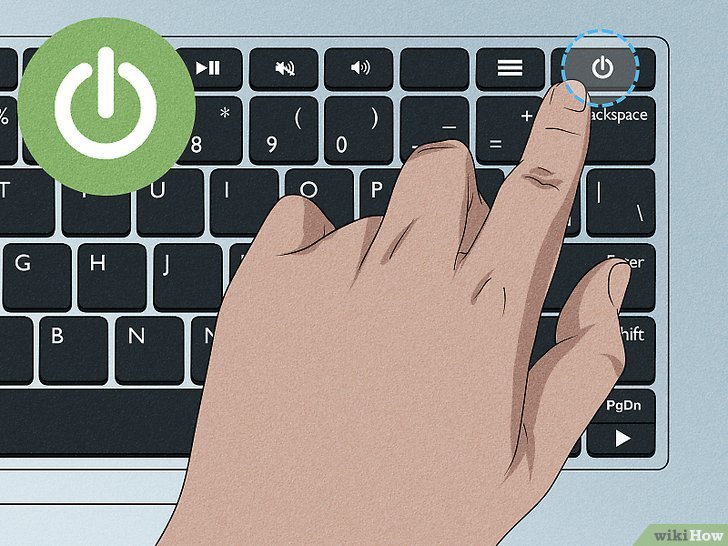
- Press the power button again to turn it back on.
- If your Chromebook is completely unresponsive, hold down the power button for about 3 seconds until it forces a shutdown, then wait a minute before restarting.
2. Check for Disabled Touchpad/Keyboard Hotkeys
Many Chromebooks come with function keys or specific key combinations designed to quickly enable or disable the touchpad, or even lock the keyboard. You might have accidentally triggered one of these.
How to do it:
- Scan your keyboard for a key with an icon resembling a touchpad (often an F-key or a dedicated key near F3). Press it to toggle the touchpad's state.
- A common keyboard shortcut to toggle the touchpad on/off is Search key + Shift + P. Give this a try.
- For keyboard issues, check if any specific keys (like a num lock or caps lock) are stuck, or if you accidentally engaged a "gaming mode" if your Chromebook has one, which might disable certain keys.
3. Dive into Your Touchpad Settings
Chromebooks offer a decent amount of customization for their touchpads. Sometimes, a setting might have been accidentally changed, or the sensitivity might just not be right for you, leading to perceived glitches.
How to do it:
- Click the time on the bottom right of your screen.
- Select the Settings icon (a gear).
- In the Settings menu, navigate to Device > Touchpad (or Mouse & Touchpad).
- Ensure "Enable Touchpad" is toggled ON. This is crucial.
- Adjust the Touchpad speed and Pointer acceleration to your preference. If your cursor is jumping, try lowering the speed and acceleration.
- Check "Tap-to-click" if you prefer tapping instead of physically pressing the touchpad to click.
- Experiment with other gestures like "Reverse scroll" if your scrolling feels off.
4. Give Your Touchpad a Good Clean
Over time, dust, crumbs, skin oils, and even moisture can accumulate on your touchpad surface. These residues can interfere with the capacitive sensors, leading to erratic cursor movement, unresponsiveness, or ghost touches.
How to do it:
- Turn off your Chromebook. This is important to prevent accidental clicks or damage.
- Use a soft, lint-free microfiber cloth.
- If necessary, dampen the cloth very slightly with plain water. Wring it out thoroughly so it's barely damp, not wet.
- Gently wipe the entire touchpad surface. Avoid harsh chemicals or abrasive materials.
- Ensure your fingers are clean and dry when using the touchpad afterward.
- For keyboard issues, gently use compressed air to blow out any debris from under the keys.
5. The "Drumroll Fix": A Quirky but Effective Trick
This one sounds a bit unusual, but many users have reported success with it. It's thought to help reset the connection between the touchpad and the internal system components.
How to do it:
- Place all your fingers (or as many as comfortably fit) on the touchpad.
- Tap them rapidly, as if you're doing a drumroll, for about 10 seconds.
- Lift your fingers and test the touchpad.
6. Disconnect External Peripherals
If you use an external mouse, keyboard, or even a USB hub, it could potentially be conflicting with your Chromebook's internal input devices.
How to do it:
- Unplug any USB mice, external keyboards, or other USB devices.
- If you have a Bluetooth mouse or keyboard connected, go to Settings > Bluetooth and temporarily turn off Bluetooth or disconnect the device.
- Test your internal touchpad and keyboard. If they work, you've found the culprit. Reconnect your external devices one by one to identify which one causes the conflict.
7. Test in Guest Mode
Chromebook issues can sometimes be tied to your user profile, specific extensions, or installed Android apps. Guest Mode offers a clean slate, running Chrome OS with minimal interference.
How to do it:
- Sign out of your Chromebook.
- On the login screen, click Browse as Guest.
- Test your touchpad and keyboard.
- If they work perfectly in Guest Mode: The problem is likely within your user profile. This could be a corrupted setting, a problematic Chrome extension, or a recently installed Android app.
- Troubleshooting your profile: Go back to your main account. Disable Chrome extensions one by one (Settings > Extensions) until the issue resolves. Review recently installed Android apps and consider uninstalling suspicious ones.
Deeper Dive: Advanced Troubleshooting Solutions
If the quick fixes didn't do the trick, it's time to dig a little deeper. These advanced steps involve system-level actions that can resolve more persistent software-related input glitches.
1. Update Your Chrome OS
Google constantly releases updates for Chrome OS, bringing new features, security patches, and crucial bug fixes. An outdated operating system can often be the root cause of hardware or software inconsistencies, including input issues. Ensuring your system is up-to-date is a fundamental step in troubleshooting any Chromebook problem.
How to do it:
- Click the time on the bottom right of your screen.
- Select the Settings icon (gear).
- Scroll down and click About Chrome OS.
- Click Check for updates.
- If an update is available, download and install it. This typically takes 5-10 minutes.
- Once the update is complete, click Restart to apply the changes.
2. Perform a Hard Reset (EC Reset)
A hard reset, also known as an EC (Embedded Controller) reset, is a powerful troubleshooting step. It resets the Chromebook's hardware components, including the touchpad and keyboard, without erasing any of your local data. This can resolve deeper hardware communication issues that a regular restart can't touch.
How to do it:
- Turn off your Chromebook completely. (Hold the power button until it shuts down, then wait at least one minute.)
- Locate the Refresh key (it looks like a circular arrow) on your keyboard, typically above the number 3 or 4.
- Press and hold the Refresh key and then press and hold the Power button simultaneously.
- Release both keys when your Chromebook starts to power on (you'll see the Google logo).
- Log back in and test your input devices.
3. Run Internal Diagnostics (for keyboard/input)
Chrome OS includes built-in diagnostic tools that can test specific hardware components, including your internal keyboard. This can help confirm if keys are physically registering or if there's a software interpretation issue.
How to do it:
- First, enable the on-screen keyboard as a backup: Click the time > Settings > Accessibility > Toggle "On-screen keyboard" to On.
- Now, access diagnostics: Go to Settings and search for "diagnostics" in the search bar at the top.
- Select Diagnostics.
- In the Diagnostics tool, navigate to the Input section.
- Click Keyboard Internal (or similar, depending on your model) and follow the on-screen instructions to test individual keys. This will visually show you which keys are registering when pressed.
4. The Nuclear Option: Factory Reset (Powerwash)
If all else fails, a factory reset (known as a "Powerwash" on Chromebooks) will restore your device to its original factory settings. This erases all local data, including downloaded files, apps, and user settings, effectively giving you a "new" Chromebook experience. This is a powerful step, and it's essential to back up any important local files (e.g., in your Downloads folder) to Google Drive or an external drive before proceeding.
How to do it:
- Click the time on the bottom right of your screen.
- Select the Settings icon (gear).
- Scroll down and click Advanced.
- Find the Reset settings section.
- Under "Powerwash," click Reset.
- Click Restart and then confirm the Powerwash.
- Your Chromebook will restart and guide you through the initial setup process as if it were brand new.
- Test your touchpad and keyboard before signing back into your Google account or adding any extensions or apps. If the problem persists after a Powerwash, it strongly indicates a hardware issue.
Spotting a Hardware Problem: When It's More Than Software
You've tried every software trick in the book, and your input devices are still unresponsive or glitchy. At this point, it's highly probable that you're dealing with a hardware malfunction. While software glitches can be frustrating, hardware problems often present with more definitive symptoms.
Here's how to tell if you might be facing a deeper hardware issue:
- Physical Damage: Visually inspect your Chromebook. Are there any cracks, dents, loose parts around the keyboard or touchpad? Has it been dropped recently? Even subtle damage can affect internal components.
- Liquid Damage: Was your Chromebook exposed to spills? Liquid damage is notorious for causing erratic behavior or complete failure of input devices.
- External Mouse/Keyboard Works Fine: This is a crucial diagnostic step. If an external USB or Bluetooth mouse works perfectly, but your internal touchpad doesn't, it strongly points to a problem with the internal touchpad itself. The same applies if an external keyboard works when the internal one doesn't.
- No Cursor Movement with Clicks: If you can physically click the touchpad, but the cursor remains frozen, or if key presses don't register at all, it suggests a complete disconnect or failure of the input mechanism.
- Intermittent vs. Consistent Failure: Software issues often manifest as intermittent glitches that a restart can temporarily fix. Hardware failures tend to be more consistent and persistent despite troubleshooting.
If you suspect a hardware issue, consider the age of your Chromebook and its warranty status. Attempting to repair internal hardware yourself is generally not recommended unless you have specific expertise, as it can void warranties or cause further damage.
Temporary Relief: Using External Input Devices
Even if your internal keyboard or touchpad is completely out of commission, you don't have to abandon your Chromebook. External input devices offer a reliable workaround to keep you productive while you decide on a permanent solution.
How to do it:
- USB Mouse/Keyboard: Simply plug a USB mouse or keyboard into an available USB port on your Chromebook. Chrome OS usually recognizes them instantly, and you can start using them immediately.
- Bluetooth Mouse/Keyboard:
- Click the time on the bottom right of your screen.
- Select the Settings icon (gear).
- Navigate to Bluetooth.
- Toggle Bluetooth to On.
- Put your Bluetooth mouse or keyboard into pairing mode (refer to its manual).
- Select the device from the list of available devices to pair it.
- Adjusting Settings: Once connected, you can adjust external mouse settings (speed, acceleration, left/right click) via Settings > Device > Mouse.
Using external devices isn't just a workaround; it's a vital diagnostic tool that helps confirm whether your internal input devices are truly failing or if there's a broader system problem. If external devices work flawlessly, you know the issue is localized to your Chromebook's built-in components. For a deeper dive into other common Chromebook frustrations, you might find our guide to glitching Chromebooks particularly helpful.
When to Call in the Pros
You've exhausted all troubleshooting options, and your Chromebook's input glitches persist. Or perhaps, you've identified clear signs of physical damage. This is when it's time to consider professional assistance. Knowing when to reach out can save you time, further frustration, and potentially, money.
Consider professional help if:
- All troubleshooting steps have failed: If even a Powerwash didn't resolve the issue, it's almost certainly a hardware problem.
- Your Chromebook is under warranty: Contact the manufacturer (e.g., Acer, HP, Lenovo, ASUS, Samsung) directly. They can provide repair or replacement options under your warranty terms. Be ready with your device's serial number.
- Clear signs of serious hardware damage: If there's obvious physical damage (cracked touchpad, keys falling out) or liquid damage, DIY fixes are unlikely to work and could worsen the problem.
- It's a school-issued Chromebook: If your Chromebook belongs to an educational institution, contact their IT department. They often have specific repair procedures, authorized service centers, or replacement programs.
- Cost vs. New Device: If your Chromebook is older and out of warranty, get a quote for repair. Compare the repair cost against the price of a new Chromebook. Sometimes, replacing an older device is more economical than repairing it, especially if other components might be nearing the end of their lifespan.
Always describe the problem in detail and list all the troubleshooting steps you've already taken. This helps the technician quickly diagnose the issue and avoids redundant tests.
Your Chromebook, Back in Action
Dealing with unresponsive keyboards, glitchy touchpads, or any input issues on your Chromebook can grind your productivity to a halt. The good news is that most of these problems are software-related and solvable with a systematic approach. By starting with simple reboots and cleaning, progressing to software updates and hard resets, and finally diagnosing potential hardware failures, you can pinpoint the root cause and get your device back to peak performance.
Remember, persistence is key. Work your way through the steps methodically, and don't skip the basics. If all else fails and you suspect a hardware issue, weigh your options carefully – a repair might be viable, or it might be time to consider upgrading to a newer model. Either way, you now have the knowledge and steps to confidently tackle those frustrating Chromebook input glitches head-on.