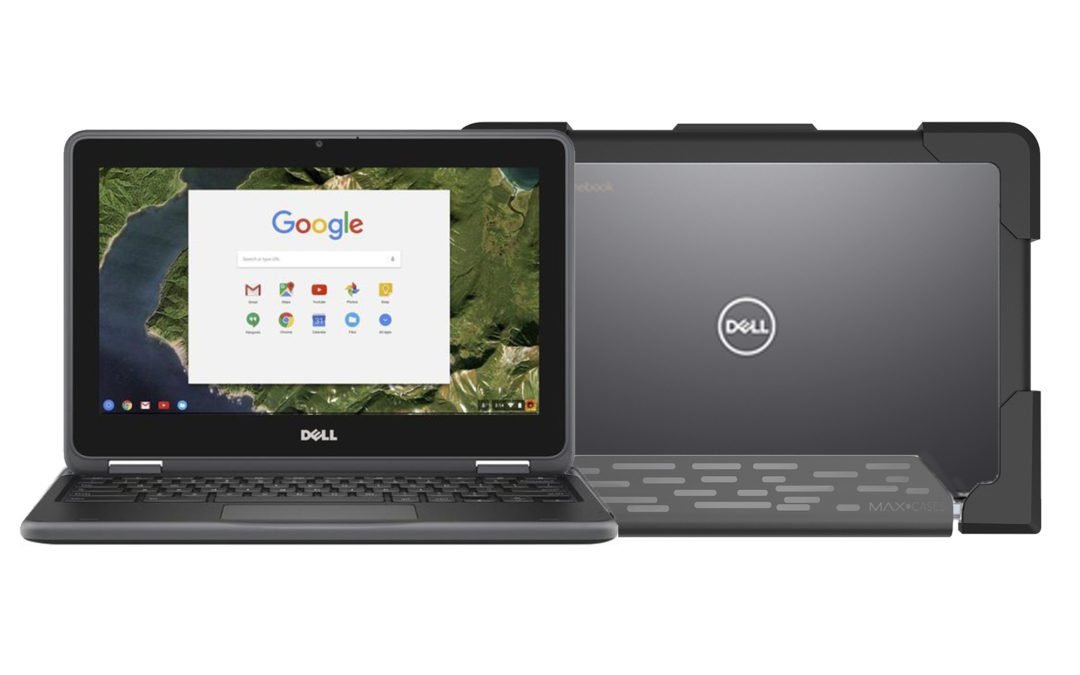
When your Chromebook, usually a bastion of simplicity and reliability, starts acting up, it can quickly turn from a productivity partner into a source of frustration. Whether it's the occasional slowdown, a nagging bug, or a complete freeze, effectively Managing Chromebook Software & Chrome OS Bugs is less about magic and more about a systematic approach to troubleshooting. This guide is your trusted co-pilot, designed to walk you through the most common software woes and help you get back to smooth sailing.
We're going beyond the basic "turn it off and on again" to equip you with the knowledge and steps to diagnose, fix, and even prevent many of the issues that can plague your Chrome OS experience. You'll learn how to identify whether a problem is software-related, a bug in the OS, or possibly a sign of deeper hardware trouble, all while keeping your data safe and your sanity intact.
At a Glance: Your Quick Fix Cheat Sheet
- Restart First: Always the simplest and often most effective initial step for minor glitches.
- Update Always: Keep Chrome OS and your apps current to patch bugs and improve performance.
- Hard Reset Magic: This can clear many software conflicts without losing data.
- Clean Up: Unused tabs, extensions, and cached data can significantly slow things down.
- Powerwash as Last Resort: A factory reset can solve deep software issues, but back up your data first!
- Know When to Call for Help: Understand when an issue indicates hardware failure or requires professional support.
Understanding the Chromebook Ecosystem: Why Things Glitch
Chromebooks are known for their speed, security, and ease of use, largely thanks to Chrome OS – a lightweight, cloud-centric operating system. This streamlined design means fewer points of failure than traditional OSes, but it doesn't make them immune to issues. Software conflicts, too many open tabs, misbehaving extensions, or even an imperfect OS update can introduce bugs and performance dips. The good news? Chrome OS is designed for quick recovery, and many problems have straightforward solutions.
Before diving into specific fixes, it's helpful to remember that most Chromebook problems fall into a few categories:
- Operating System Issues: Bugs introduced in updates, system resource contention.
- Browser-Specific Problems: Slow webpages, "Aw, snap!" errors, plug-in crashes.
- App Conflicts: Android apps or web apps not playing nicely with Chrome OS.
- Connectivity Glitches: Wi-Fi or peripheral device recognition issues.
- Hardware Interplay: Software failing to correctly interface with your Chromebook's components.
Your Go-To Strategy: The Basic Troubleshooting Checklist
When something feels off, don't panic. Start here. These foundational steps resolve a surprisingly high percentage of common issues, acting as your primary line of defense against most software and OS bugs.
1. Unplug Everything (Seriously)
Start by disconnecting all external devices: USB drives, mice, keyboards, external monitors, headphones, and even the power adapter. Sometimes, a peripheral can interfere with the system, causing unexpected behavior or preventing proper startup. Once everything's unplugged, you have a clean slate for troubleshooting.
2. A Simple Reboot: The Classic Fix
This is the ultimate "reset button" for your software. Restarting your Chromebook closes all running programs, clears temporary memory, and reloads the operating system from scratch. It's astounding how often this simple action resolves minor software hiccups.
- Click the time on the shelf (bottom right).
- Click the Power icon.
- Select "Restart."
3. Always Check for System Updates
Google frequently releases Chrome OS updates that include bug fixes, security patches, and performance improvements. Running an outdated version of the OS can be the root cause of many problems. It’s always a good idea to ensure you're on the latest stable version.
- Click the time on the shelf (bottom right).
- Go to Settings (gear icon).
- In the left sidebar, click About Chrome OS.
- Click Check for updates.
- If an update is available, download and install it, then restart your Chromebook.
4. The "Hard Reset" (Controller Reset)
A hard reset (also known as a hardware reset or controller reset) is different from a regular restart. It reboots the core hardware components of your Chromebook, like the processor, memory, and motherboard, without erasing your personal data. This can resolve issues where your Chromebook is unresponsive, peripherals aren't working, or the system is otherwise unstable.
How to Perform a Hard Reset:
- Turn off your Chromebook completely (don't just close the lid).
- Unplug any connected devices, including the power adapter.
- Press and hold the Refresh key (circular arrow, usually above the '3' key) and tap the Power button simultaneously.
- Release both keys when your Chromebook starts up.
- Plug the power adapter back in and restart normally.
Note: The exact steps might vary slightly for convertible Chromebooks or tablets. Check your device's manual if Refresh + Power doesn't work.
Tackling Specific Software & OS Annoyances
Once you've tried the basic checklist, it's time to dig into more specific issues. These sections address common problems you might encounter and provide targeted solutions.
The Sluggish Chromebook & Freezing OS
A slow or freezing Chromebook is incredibly frustrating. It often points to resource contention – too many apps or processes trying to use the limited CPU and RAM.
- Close Unused Chrome Tabs and Apps: Each open tab, especially those with complex web pages or streaming media, consumes memory and CPU. Do the same for Android apps running in the background. Be mindful of what you keep open.
- Remove or Disable Unused Chrome Extensions: Extensions, while useful, can be resource hogs or even introduce compatibility issues.
- Open Chrome, click the three-dot menu (top right).
- Go to More tools > Extensions.
- Toggle off or remove any extensions you don't frequently use or recognize.
- Use Task Manager (Search+Esc) to Identify Resource-Heavy Apps/Processes: Chrome OS has a built-in Task Manager that shows you what's consuming your system resources.
- Press Search (magnifying glass or launcher icon) + Esc simultaneously.
- Sort by "CPU" or "Memory" to see which processes are using the most resources.
- Select a resource-heavy tab or app you don't need and click "End process."
- Clear Chrome's Cache and Cookies: Over time, cached data can become corrupted or simply grow too large, slowing down your browser.
- Open Chrome, click the three-dot menu.
- Go to More tools > Clear browsing data.
- Select a "Time range" (e.g., "All time") and check "Cached images and files" and "Cookies and other site data."
- Click "Clear data."
- Check for Overheating: If your Chromebook feels unusually hot, performance can dip as the system throttles itself to prevent damage. Ensure the vents are clear and fans are running (if your model has them). Using your Chromebook on soft surfaces (like a bed or lap) can block airflow.
Wonky Wi-Fi & Connectivity Dropouts
Network issues can be incredibly frustrating, especially for a cloud-dependent device like a Chromebook.
- Restart Your Router and Chromebook: The classic IT advice for a reason. Restarting both devices can resolve temporary network glitches.
- Forget and Reconnect to the Network: This forces your Chromebook to establish a fresh connection with the Wi-Fi network.
- Go to Settings > Network > Wi-Fi.
- Click your network.
- Choose "Forget."
- Then, find your network again and reconnect, re-entering the password.
- Check for Captive Portals on Public Networks: In hotels, airports, or cafes, you often need to open a browser and accept terms or log in after connecting to Wi-Fi. Ensure you've completed this step.
- Diagnose the Source: To figure out if the problem is your Chromebook or the network, try these tests:
- Can other devices (phone, tablet, another laptop) connect to your Wi-Fi network? If yes, the issue is likely with your Chromebook.
- Can your Chromebook connect to a different network, like a mobile hotspot from your phone? If yes, the issue is likely with your primary Wi-Fi network.
App Mayhem: Android Apps Behaving Badly
While Android apps greatly expand Chromebook functionality, they can sometimes cause specific issues like crashing or not loading.
- Reinstall the Problematic App: This ensures you have a fresh, uncorrupted installation of the app.
- Right-click (or two-finger tap) the app icon in your launcher.
- Select "Uninstall."
- Reinstall it from the Google Play Store.
- Verify App Permissions: An app might misbehave if it doesn't have the necessary permissions.
- Go to Settings > Apps > Manage apps.
- Select the problematic app.
- Check "Permissions" and ensure all necessary ones are granted.
- Clear App Data: This wipes all local data associated with the app, essentially resetting it to a freshly installed state.
- Go to Settings > Apps > Manage apps.
- Select the app.
- Click "More settings and permissions."
- Then, choose "Storage" and select "Clear data" (and "Clear cache" if available). Caution: This will delete any local data saved within the app (e.g., game progress, downloaded files), so back up anything important first.
"Aw, Snap!" and Plug-in Crashes
These common browser errors often indicate a problem with a specific webpage, an extension, or insufficient system resources.
- If it's a single webpage, try refreshing the page or restarting Chrome.
- Check your extensions (as discussed above) – one might be causing conflicts.
- Ensure your Chromebook isn't running low on memory by checking the Task Manager.
- Sometimes, specific sites might just be poorly optimized for Chrome.
Audio & Display Glitches
If your sound isn't working or your screen is flickering, here's where to look.
- Check Audio Settings (Output, Volume):
- Click the time on the shelf (bottom right) to open the Quick Settings panel.
- Ensure the volume is up and the correct output device (internal speakers, headphones, Bluetooth) is selected.
- For more options, go to Settings > Device > Audio.
- Restart the Chromebook with Headphones/Speakers Unplugged: Sometimes, the system gets confused about audio outputs. Restarting without external devices can force it back to internal speakers.
- For Display Issues, Try Disabling Hardware Acceleration: While usually beneficial, hardware acceleration can sometimes cause display glitches with certain graphics drivers or websites.
- Open Chrome, click the three-dot menu.
- Go to Settings > System.
- Toggle off "Use hardware acceleration when available." Restart Chrome.
- Test with an External Display or Speakers: If audio or video works perfectly through an external device, it strongly suggests a hardware problem with your Chromebook's internal components. If software steps fail, it's likely a hardware issue needing professional attention.
USB and Peripherals Not Working
When your external mouse, keyboard, or USB drive isn't recognized, consider these steps.
- Unplug and Replug the Device: A simple reseat can fix connection issues.
- Try a Different USB Port: A specific port might be faulty.
- Restart the Chromebook with the USB Device Plugged In: Sometimes, having the device connected during startup can help the OS recognize it.
- Check if the Device Works on Other Computers: This is crucial for isolating the problem. If it works elsewhere, the issue is with your Chromebook. If not, the peripheral itself might be faulty.
- Research Online for Known Compatibility Issues: Some niche USB devices might not be fully compatible with Chrome OS. A quick search with your Chromebook model and the peripheral's name can often reveal known issues or workarounds.
When All Else Fails: Advanced Steps & Data Protection
If the specific troubleshooting steps haven't solved your problem, it might be time for more drastic measures.
The Nuclear Option: Powerwash (Factory Reset)
A Powerwash is a factory reset for your Chromebook. It erases all local data and user profiles, returning the device to its out-of-the-box state. This is a powerful software intervention that can resolve deep-seated OS bugs, persistent performance issues, and stubborn malware that other methods can't touch.
Crucial Steps Before a Powerwash:
- Ensure Cloud Syncing is Complete: Most of your essential data (Google Drive files, Chrome settings, Android app data) should automatically sync to the cloud. Double-check that your Google Drive is up to date.
- Manually Back Up Local Files Not in the Cloud: Any files downloaded to your "My files" > "Downloads" folder or stored locally that aren't synced to Google Drive will be permanently deleted. Copy them to Google Drive, an external USB drive, or an SD card.
- Remove Your SD Card: If you have an SD card inserted, remove it before the Powerwash to protect its contents.
How to Perform a Powerwash: - Click the time on the shelf (bottom right).
- Go to Settings (gear icon).
- In the left sidebar, click Advanced, then Reset settings.
- Under "Powerwash," click Restart.
- Follow the on-screen prompts. Your Chromebook will restart and guide you through the initial setup process as if it were brand new.
After a Powerwash, you'll sign in with your Google Account, and most of your settings and cloud-synced data will restore automatically.
Recognizing Hardware vs. Software Battles
Sometimes, despite your best software troubleshooting efforts, a problem persists. This is often when a hardware issue might be at play. How do you tell the difference?
- Physical Damage: Any signs of liquid spills, drops, or a visibly swollen battery are strong indicators of hardware damage. If your laptop shows physical damage, do not charge it; take it to a qualified technician immediately.
- Persistent Issues After All Software Steps: If you've tried everything mentioned above, including a Powerwash, and the problem (e.g., a non-functional key, a flickering screen, inability to turn on) remains, it's highly likely to be hardware-related.
- External Device Testing: As mentioned earlier, if an external keyboard works but the internal one doesn't, or external speakers work but internal ones don't, it points to internal hardware failure.
- Chromebook Won't Turn On (After Basic Checks):
- Check if the charger light is on and if you're using a known good power source (e.g., a different USB-C charger if applicable).
- Leave the charger connected for at least 30 minutes if the battery was fully drained.
- If a hard reset doesn't revive it and the charger seems fine, it could be the battery, charging port, or motherboard.
For issues like a non-responsive keyboard, trackpad, or touchscreen, trying an external mouse and keyboard can help isolate the problem. If the external devices work perfectly, the internal peripherals are likely faulty. Booting into Guest mode (if possible) can also help rule out profile-specific software issues. When you find yourself in a situation where the hardware seems to be the culprit, it's time to consider professional help. Learning to spot these differences is key to Troubleshooting your glitching Chromebook effectively.
Reporting Problems & Getting Further Help
If you encounter a bug or problem that seems to be a widespread Chrome OS issue, or if you can't resolve it yourself, reporting it helps Google improve the operating system for everyone.
- Use the Built-in Report Tool:
- Open Chrome.
- Click More (three vertical dots, top right).
- Go to Help > Report an issue.
- Provide as much detail as possible, including steps to reproduce the issue and (optionally) system logs and screenshots.
- Google's Help Forum: The official Chromebook Help Forum is an excellent resource for community support. You can search for existing solutions or post your own question. Many knowledgeable users and Google experts monitor the forum.
- Contact the Manufacturer: For suspected hardware issues or if your device is under warranty, your Chromebook's manufacturer is the primary point of contact for repairs or replacements. Have your device's model and serial number handy.
Beyond Repair: End-of-Life & Responsible Disposal
Sometimes, a Chromebook reaches a point where repair costs outweigh the value, especially if it's an older model.
- Check Your Warranty Status: If the issue wasn't caused by accidental damage or normal wear, your warranty might cover repair or replacement.
- Consider End-of-Support (EOS) Date: Every Chromebook has an automatic update expiration date. Once past this date, your device will no longer receive official Chrome OS updates, making it less secure and potentially incompatible with newer web standards and apps. Repairing an out-of-support device might not be economical if you're looking for longevity.
- Arranging Repair: If you decide to proceed with a repair, contact the manufacturer for recommendations on qualified service centers.
- Responsible Disposal: If your Chromebook is beyond repair or replacement, dispose of it responsibly through electronic waste recycling programs. Do not simply throw it in the trash, as it contains components that can harm the environment.
Staying Proactive: Best Practices for a Smooth Chromebook Experience
The best way to deal with software bugs and performance issues is to prevent them in the first place.
- Keep Chrome OS and Apps Updated: Regularly check for and install updates to benefit from bug fixes and security enhancements.
- Be Mindful of Your Tabs and Extensions: Regularly audit your open tabs and installed extensions. Close what you don't need and remove what you don't use. Less clutter often means better performance.
- Maintain Physical Cleanliness: Keep your Chromebook's vents clear of dust and debris to ensure proper airflow and prevent overheating, which can lead to performance throttling.
- Embrace the Cloud: While not strictly software management, using cloud storage (Google Drive is built-in) for your important files means you're never worried about data loss during a Powerwash or in case of hardware failure.
By adopting these proactive habits and knowing how to effectively troubleshoot, you'll ensure your Chromebook remains the fast, secure, and reliable companion it was designed to be, letting you focus on what matters most.