Chromebooks are celebrated for their simplicity, lightning-fast boot times, and secure, cloud-centric experience. But even these reliable devices aren't immune to frustrating hiccups. If you're looking at a flickering, frozen, distorted, or randomly black screen, you know that a glitching display can bring your productivity to a screeching halt. Don't worry, you're not alone, and most screen issues are surprisingly easy to fix yourself.
This comprehensive guide is your ultimate resource for diagnosing and resolving common Chromebook screen glitches. We'll walk you through everything from simple restarts to more advanced troubleshooting, helping you pinpoint the problem and restore your screen to its crystal-clear glory.
Understanding What Your Glitching Chromebook is Telling You
Before diving into solutions, it’s helpful to understand what a glitching screen looks like and what might be causing it. Identifying the specific symptoms can often guide you directly to the correct fix.
Common Symptoms of a Glitching Chromebook Screen:
- Flickering Display: The screen rapidly brightens and darkens, or sections flash erratically.
- Screen Randomly Goes Black or White: The display intermittently loses signal, showing a blank screen, then possibly returning to normal.
- Frozen Display or Laggy Touch Response: The image on your screen becomes unresponsive, or touch inputs are significantly delayed.
- Graphic Distortions: You might see unusual lines, artifacts, color blocks, or fragmented images across the screen.
- Brightness Fluctuating Without Input: The screen's brightness level changes on its own, without you adjusting it.
- Screen Tearing: During fast-moving videos or scrolling, the screen displays parts of multiple frames simultaneously, creating a "tear" effect.
What Causes These Frustrating Glitches?
Chromebook screen glitches can stem from a variety of sources, ranging from minor software hiccups to more serious hardware issues. Understanding these origins can empower you to fix the problem more efficiently.
- Software Gremlins: Often, the culprit is a software bug, a recent system update gone awry, or an issue with specific apps or extensions. Corrupt user profiles or outdated Chrome OS versions can also play a role.
- Hardware Conflicts: Sometimes, the problem lies deeper, with faulty display settings, outdated graphics drivers, or even internal hardware issues like loose screen connectors. Overheating can also significantly impact display performance.
- External Factors: Physical damage, while hopefully not your issue, is a straightforward cause. Even something as simple as a problematic web application or add-on conflict can trigger display issues.
For a broader understanding of various issues your Chromebook might face, from general slowdowns to more specific component failures, you might find our guide on Diagnosing General Chromebook Glitches incredibly helpful.
Your Step-by-Step Guide to Fixing a Glitching Chromebook Screen
Let's get your Chromebook screen back to normal! We'll start with the simplest, most common fixes and progressively move to more advanced solutions.
1. The Essential First Steps: Restart & Reset
Many digital woes can be resolved with a simple system refresh. These initial steps are quick, easy, and often surprisingly effective.
- Restart Your Chromebook: The oldest trick in the book often works wonders.
- Click the bottom-right system tray (where the time is).
- Select the power icon.
- Choose "Shut down."
- Wait 10-15 seconds, then power it back on. This clears temporary memory and resets the system.
- Address Overheating: Overheating can cause a myriad of performance issues, including screen glitches.
- If your Chromebook feels unusually warm, shut it down immediately.
- Place it in a cool, well-ventilated area.
- Allow it to cool down completely for 30-40 minutes before restarting.
- Perform a Hard Reset: This refreshes the hardware components without deleting any of your files.
- Turn off your Chromebook.
- Press and hold the Refresh key (the circular arrow) and tap the Power button.
- Release the Refresh key when the Chromebook starts up.
2. Software Solutions: Updating, Disabling & Adjusting
Often, screen glitches are a symptom of software out of sync. These steps focus on ensuring your Chrome OS is current and no rogue applications are causing trouble.
- Check for ChromeOS Updates: Keeping your operating system updated is crucial for performance and bug fixes.
- Go to Settings > About ChromeOS.
- Click Check for updates.
- Install any available updates and restart your Chromebook.
- Disable or Remove Problematic Extensions: Overloaded extensions or a single problematic one can wreak havoc on your display.
- Open the Chrome browser and type
chrome://extensions/into the address bar. - Disable extensions one by one, restarting your Chromebook after each, to identify the culprit.
- Once found, remove the problematic extension.
- Reset Display Settings: Sometimes, the display settings themselves get confused.
- Press
Ctrl + Shift + 0(zero) to reset screen orientation. - Use
Ctrl + Shift + '+'or'-'to adjust screen resolution. - Navigate to Settings > Device > Displays and choose "Reset" if available.
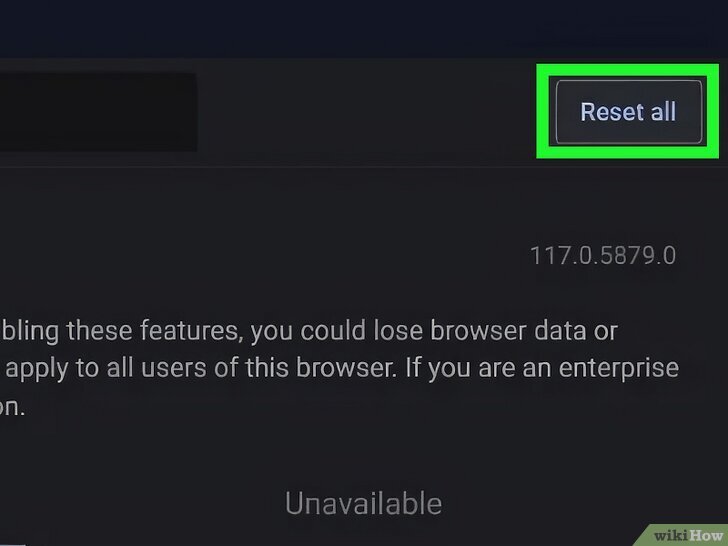
- Disable Smooth Scrolling Flag: This experimental feature can sometimes cause GPU-related scrolling glitches.
- Enter
chrome://flagsin the address bar. - Search for "smooth scrolling."
- Select "Disabled" from the dropdown.
- Click "Relaunch" at the bottom of the screen.
- Disable Hardware Acceleration: While usually beneficial, hardware acceleration can occasionally conflict with graphics drivers, leading to display issues.
- In Google Chrome, click the Menu icon (three vertical dots) > Settings > System.
- Turn off the toggle beside "Use hardware acceleration when available."
- Restart your Chromebook. If you find your screen still exhibiting unusual behaviors like flickering or distortion, our dedicated resource on Fix Chromebook screen issues Resolve Chromebook offers more in-depth solutions specifically for display-related anomalies.
3. Deeper Dives: User Profiles, Factory Resets & System Recovery
If the simpler fixes haven't worked, it might be time to investigate potential corruption or more fundamental system issues.
- Sign In with a Different Account: A corrupted user profile can sometimes manifest as screen glitches.
- Sign out of your current Google account.
- On the login screen, click "Add Person" and sign in with another Google account (or create a new one).
- If the glitch disappears, your main account might be corrupted. You may need to reset it or carefully transfer your data.
- Perform a Powerwash (Factory Reset): This is a powerful step that erases all local data and returns your Chromebook to its factory settings.
- Crucially, back up important files first! Open the Chrome OS Files app, select files in Downloads (
Ctrl + A,Ctrl + C), then paste into a new Google Drive folder (Ctrl + V) or an external device. - To perform the reset, restart your Chromebook.
- On the login screen, press and hold
Ctrl + Alt + Shift + R, then click Restart. - In the dialog box, select Powerwash > Continue, and follow the on-screen instructions.
- Perform a System Recovery: This is the most drastic software fix, reinstalling the entire operating system. It will erase all files and require a recovery USB drive.
- Disconnect all external accessories.
- Press and hold the Power key while simultaneously holding the Esc and Refresh keys.
- Release the Power key first, then the other keys when a message appears on the screen, prompting you for recovery.
- You'll need to create a recovery drive using another working computer.
When dealing with a frozen display or a Chromebook that's generally sluggish and unresponsive, these deeper system resets can often be the key to getting it back to speed. For a complete guide to tackling system freezes and performance bottlenecks, be sure to check out our detailed pillar on how to Fix your Chromebook today Solve Chromebook.
4. Diagnosing Hardware: External Monitors & Physical Checks
Sometimes, the issue isn't software at all, but the physical display itself.
- Check with an External Monitor: This is the quickest way to differentiate between a software glitch and a faulty internal screen.
- Connect your Chromebook to an external monitor via HDMI or a USB-C adapter.
- If the external monitor does not glitch, the problem likely lies with your Chromebook's internal screen hardware.
- Check for Physical Damage: A visual inspection can reveal obvious signs of wear and tear.
- Carefully inspect hinges and screen connectors – does the screen glitch or change when the lid is moved slightly? This often indicates a loose internal cable.
- Look for external cracks, pressure marks, or liquid damage on the screen or casing.
- Feel for signs of excessive overheating in specific areas.
- If hardware damage is suspected, especially after the external monitor test, contact the device manufacturer or a certified technician.
It's worth noting that if your screen only glitches when watching videos, it could also point to issues with outdated display drivers or even an overloaded GPU impacting not just visuals but potentially audio or camera performance as well. For a broader look at troubleshooting multimedia components, our guide on Fix Chromebook audio, video, camera issues might offer additional insights.
Beyond the Screen: Other Glitches to Consider
While we're focused on screen issues, it's good to remember that other problems can sometimes manifest in unexpected ways, or you might encounter them alongside screen glitches. If you've been having trouble connecting to Wi-Fi or other network services, for instance, you'll find comprehensive help in our guide for Addressing Chromebook Connectivity & Network.
Preventing Future Screen Glitches
An ounce of prevention is worth a pound of cure! Follow these tips to minimize the chances of future display problems:
- Keep ChromeOS Updated: Regularly check for and install updates to ensure you have the latest bug fixes and performance enhancements.
- Be Mindful of Extensions: Install only necessary and reputable extensions. Periodically review and remove any you no longer use or that seem suspicious.
- Handle Your Device Carefully: Avoid dropping, bending, or placing heavy objects on your Chromebook.
- Avoid Extreme Temperatures: Don't expose your Chromebook to very hot or very cold environments, as this can degrade components over time.
- Use Protection: If you travel frequently, invest in a padded carrying bag and consider a screen protector.
Frequently Asked Questions (FAQs)
Why is my Chromebook screen flickering only when watching videos?
This could be due to outdated display drivers, overheating, or an overloaded GPU. Try restarting your Chromebook, updating ChromeOS, or closing unnecessary tabs and apps to free up resources.
Will a factory reset delete everything on my Chromebook?
Yes, a Powerwash (factory reset) will erase all user data, locally installed apps, and settings from your Chromebook. Always back up important files to Google Drive or an external device before performing a Powerwash.
Can a glitching screen be caused by a virus?
Chromebooks are generally resistant to traditional viruses thanks to their sandboxed environment and robust security features. However, malfunctioning or malicious extensions, or web-based scripts, can sometimes cause display problems. Disabling suspicious extensions and restarting your device is a good first step.
My screen only glitches when I move the lid. What does this mean?
This symptom strongly suggests a hardware issue, most likely a loose or damaged screen cable connecting the display to the motherboard, or a problem with the hinge mechanism. This typically requires professional repair.
Is there a shortcut to rotate or reset the screen?
Yes! You can use Ctrl + Shift + Refresh to rotate the screen's orientation. To reset its orientation back to normal (e.g., after rotating it accidentally), use Ctrl + Shift + 0 (zero).
Keep Your Chromebook Running Smoothly
Navigating a glitching Chromebook screen can be a headache, but with the right information, you're empowered to troubleshoot and resolve most issues effectively. By systematically applying these fixes, you can restore your display and get back to enjoying the seamless experience your Chromebook is designed to offer. Remember, regular maintenance and careful handling are your best defense against future glitches, ensuring your device remains a reliable companion for all your tasks.